Entourage for Mac OS X
This guide will step you through setitng up an email account in Entourage using Mac OS X.
Start by opening the "Entourage" application inside "Macintosh HD", then "Applications", then "Microsoft Office".
Welcome screen
If this is the first time you have opened Entourage, you will be prompted to set up a new email account. If you have already set up an account in Entourage once before and wish to set up a new email account, simply go to "Entourage", "Account Settings", then "New" and follow the same procedure outlined below: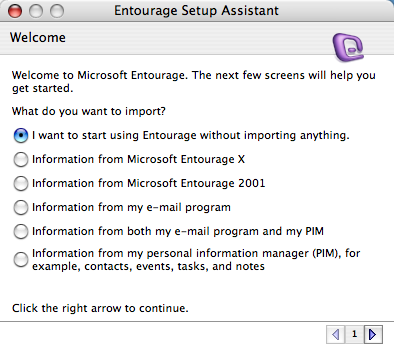
Choose to not import anything.
Enter your email address.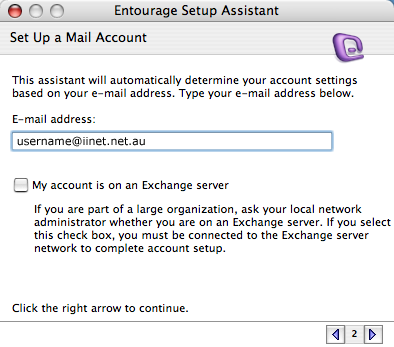
Note that the error displayed below will always occur - Entourage cannot use Automatic Configuration for your iiNet email account.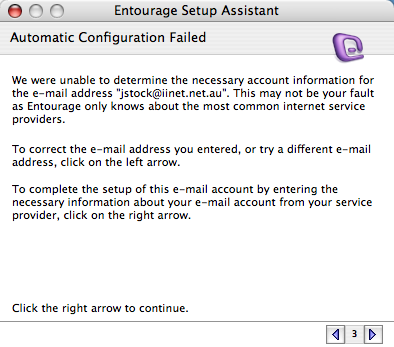
Fill in the details as you would normally and remember to change the incoming mail server type to POP. It's a good idea to save the password to your Mac OS X keychain so that Entourage does not keep prompting you for it.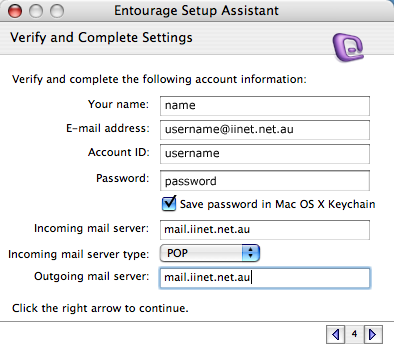
You will be prompted to verify your settings. You don't have to but you can by clicking the "Verify My Settings" button. If you are not connected to the internet this process will fail.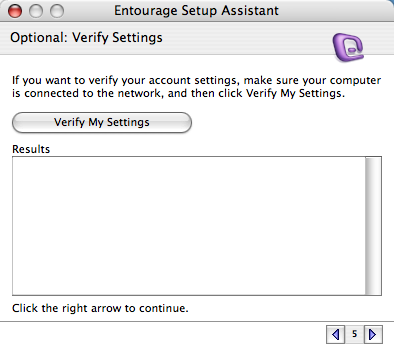
If you don't choose to verify your settings, you'll be prompted to anyway. Clicking "Skip" will bypass verification.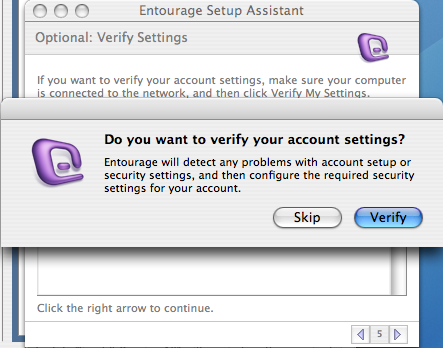
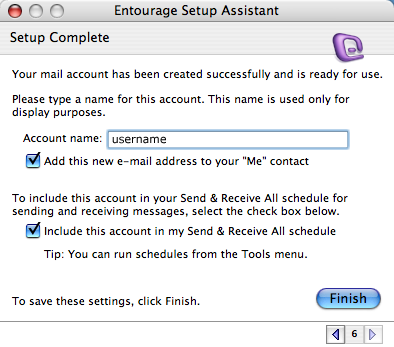
Click "Finish" and the process is complete.