
Front page
Select Content → Front Page Manager from the drop-down menu on the back-end of your Joomla! installation. Or click on the 'Front Page Manager' button in the Control Panel screen.
Description
The Front page is a view showing articles marked as "Front page" in the Article Manager. The Front page has it's own settings (parameters) which may differ from the rest of the site.
Toolbar
- Archive. To change one or more Articles to Archived status, select them and press this button. Archived Articles are retained on the site and are available for viewing on Menu Items with a Type of Archive Layout. They can not be published to other pages while set to Archived status. Note that Articles assigned to the "Uncategorized" Section will not show on the Archived Article List layout.
- Publish. To publish one or more items, select them and click on this button.
- Unpublish. To unpublish one or more items, select them and click on this button.
- Remove: To remove one or more items, select them and click on this button.
- Help. Opens this Help Screen.
Screenshot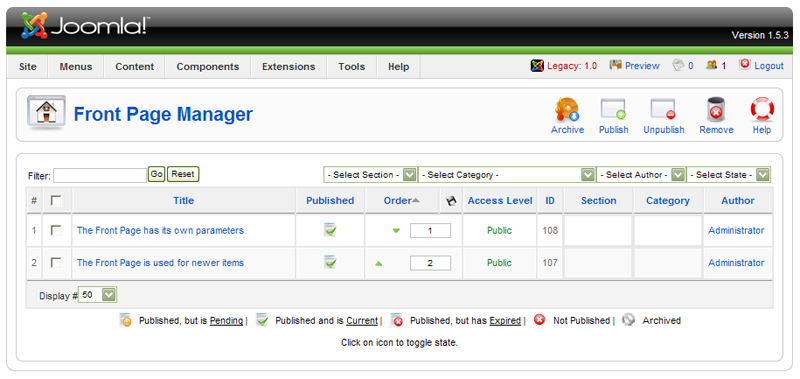
Column headers
Click on the column heading to sort the list by that column's value.
- #. An indexing number automatically assigned by Joomla! for ease of reference.
- Checkbox. Check this box to select one or more items. To select all items, check the box in the column heading. After one or more boxes are checked, click a toolbar button to take an action on the selected item or items. Many toolbar actions, such as Publish and Unpublish, can work with multiple items. Others, such as Edit, only work on one item at a time. If multiple items are checked and you press Edit, the first item will be opened for editing.
- Title. The name of the item. For a Menu Item, the Title will display in the Menu. For an Article, Section, or Category, the Title may optionally be displayed on the web page. This entry is required. You can open the item for editing by clicking on the Title.
- Published. Whether the item has been published or not. You can change the Published state by clicking on the icon in this column.
- Order. The order to display items. If the list is sorted by this column, you can change the order by clicking the arrows or by entering the sequential order and clicking 'Save Order'.
- Access Level.Who has access to this item. Current options are:
- Public: Everyone has access
- Registered: Only registered users have access
- Special: Only users with author status or higher have access
You can change an item's Access Level by clicking on the icon in the column.
- ID. The ID number. This is a unique identification number for this item assigned automatically by Joomla!. It is used to identify the item internally, for example in internal links. You can not change this number.
- Section. The Section this item belongs to. Clicking on the Section Title opens the Section for editing.
- Category. The Category this item belongs to. Clicking on the Category title opens the Category for editing.
- Author. Name of the Joomla! User who created this item. Clicking on the Author opens the User for editing.
