
Mail for Mac OS X 10.2
To open Mail click its icon in the Dock (see below), or find the Mail icon inside "Macintosh HD" then "Applications".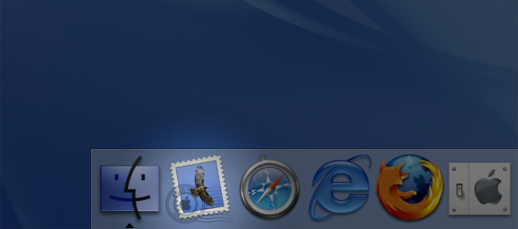
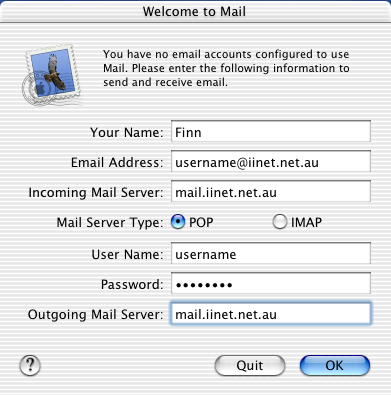
If this is the first time you have set up Mail, you will be prompted to set up a new Mail account. If you have already set an account up in Mail once before and wish to set up a new iiNet email account, skip to the next screen.
Enter the following:
- Your name: The name you would like to appear on any emails you send
- Email address: Your email address, e.g. This email address is being protected from spambots. You need JavaScript enabled to view it.
- Incoming mail server: mail.iinet.net.au
- Mail server type: POP
- Username: Your email address (again)
- Password: Your account password
- Outgoing mail server: mail.iinet.net.au
If you need to add extra email accounts, go to "Mail Preferences" in the Apple Mail menu bar and click "Accounts". You should see something like the following screen: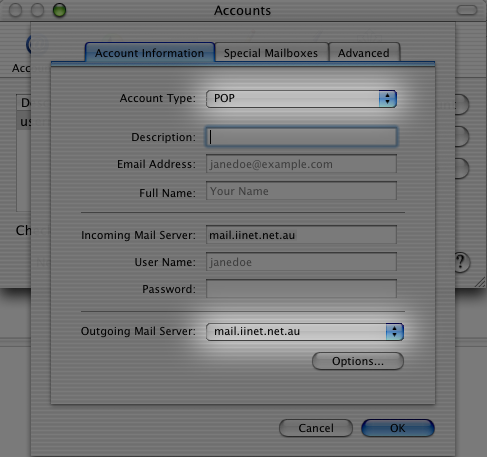
Fill in your full name, username, password and incoming server as recommended by the instructions in the "Welcome Screen" section earlier in this article to complete the process.
