Outlook 98
This tutorial will guide you through setting up email for Microsoft Outlook 98 email program.
Open Microsoft Outlook and click "Tools" then "Services" to check the settings.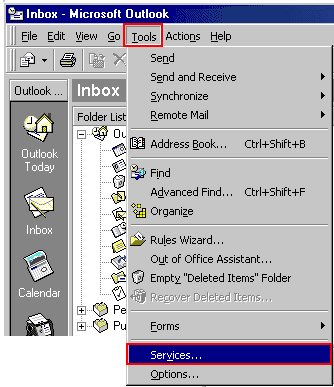
Click "Add" if you do not have Internet E-mail installed in the Services section. If you already have an account set up, highlight the account and click "Properties".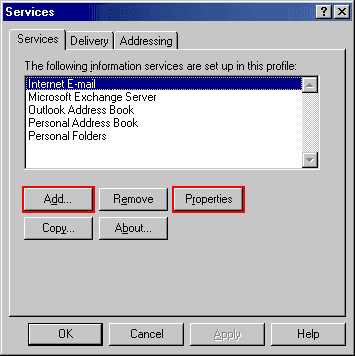
Highlight "Internet E-mail" and click "OK".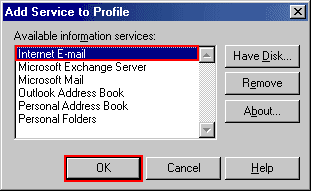
Enter the following details:
- Mail account: The name by which your computer will refer to this account
- Name: The name you'd like to appear on any emails you send
- Email address: Your email address, e.g. This email address is being protected from spambots. You need JavaScript enabled to view it.
Click the "Servers" tab to continue.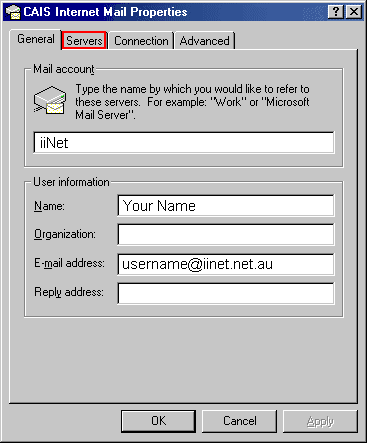
Set the following settings under "Servers":
- Outgoing mail (SMTP):mail.iinet.net.au
- Incoming mail (POP3): mail.iinet.net.au
- Account name: Your username, e.g. This email address is being protected from spambots. You need JavaScript enabled to view it.
- Password: Your account password
Click the "Connection" tab to continue.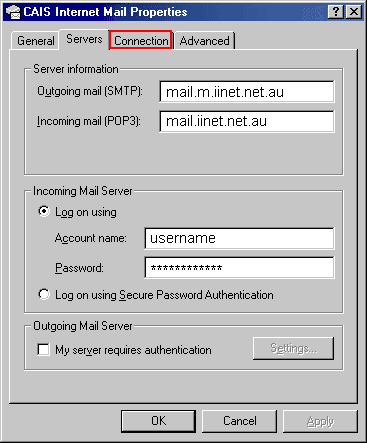
Choose "Connect using my phone line" unless you are on a LAN. Select your connection for and click the "Advanced" tab to continue.
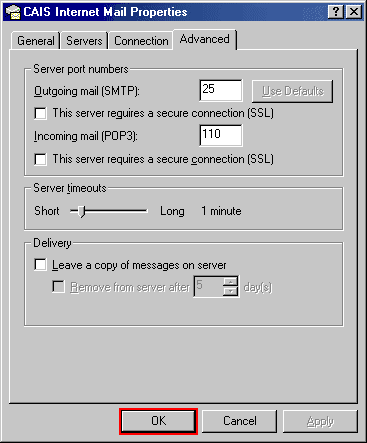
Set your options as above. Note that this is the section where you can Leave a copy of Messages on Server. Click "OK" to continue.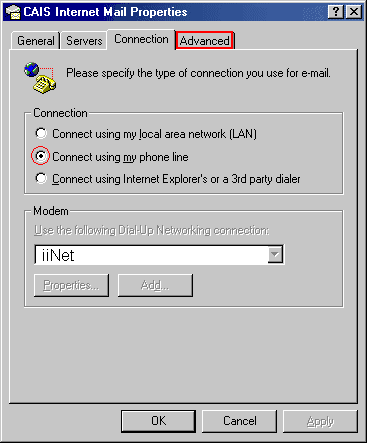
Under "Advanced", ensure the outgoing (SMTP) port is set to 25 and incoming (POP) is 110. CLick "OK" to complete the setup.