Outlook Express 5
This guide will step you through setting an account up in Outlook Express 5.
Open Outlook Express and click "Tools" on the toolbar.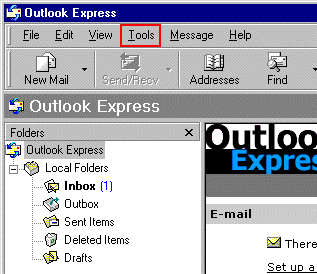
Click "Accounts".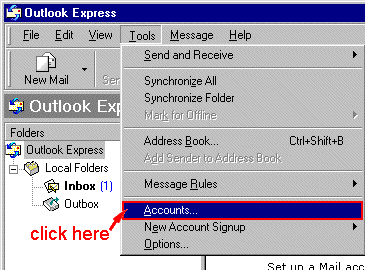
Click on the "Mail" tab and then click "Add" to add a new account.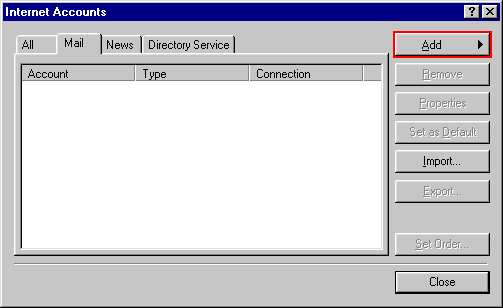
Click "Mail" to set up a new email account.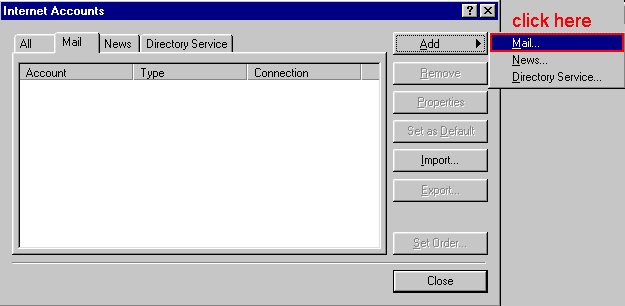
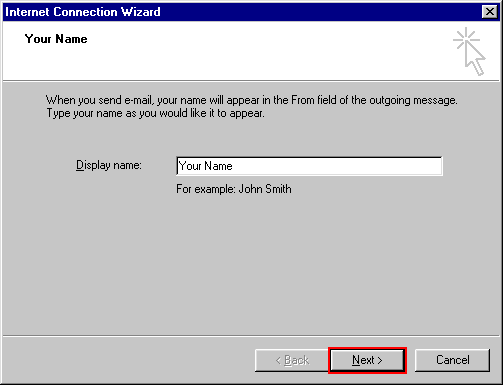
Type your name as you would like it to appear on the emails you send. Click "Next" to continue.
Select "I already have an e-mail address that I'd like to use". Type your email address in the form This email address is being protected from spambots. You need JavaScript enabled to view it. and click "Next" to continue.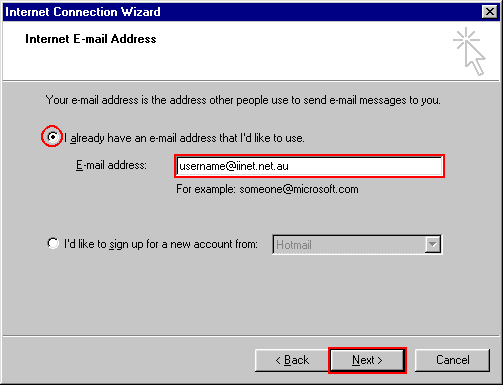
Enter the following settings:
- My incoming mail server is a: POP3
- Incoming mail: mail.iinet.net.au
- Outgoing mail: mail.iinet.net.au
Click "Next" to continue.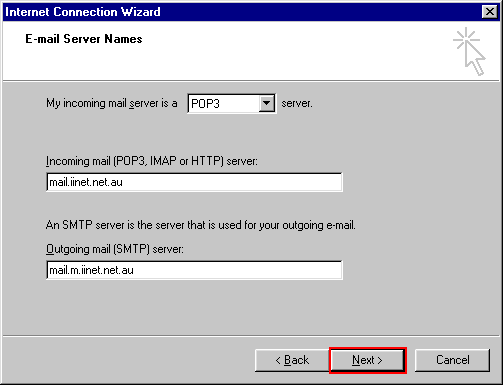
Enter the following:
- Account name: Your username, e.g. This email address is being protected from spambots. You need JavaScript enabled to view it.
- Password: Your account password
Select "Remember password" if you do not want to type your password in every time you check your email. Click "Next" to continue.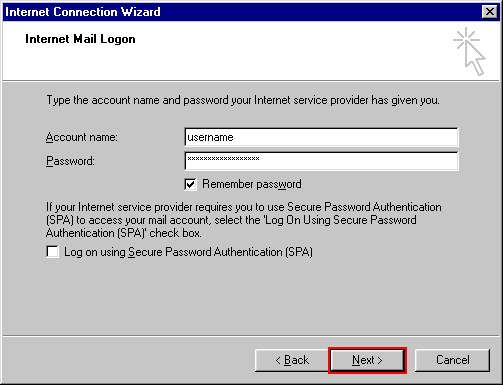
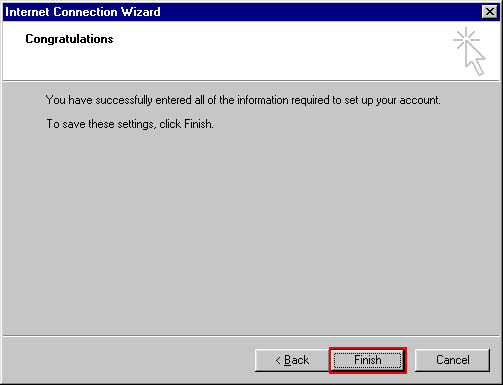
Click "Finish" to complete the setup.