
Setting up roaming email
Overview
Sometimes after checking your email from another computer you might find all the email is gone. This is because when you download email to any computer it removes the email from iiNet's servers.
To resolve this, and have 'roaming' email as such you need to leave a copy of the emails on the server. Please note, iiNet maintains a 50MB soft limit on mailboxes. If you have more than 50MB of email in an inbox you may be subjected to deletion of old messages.
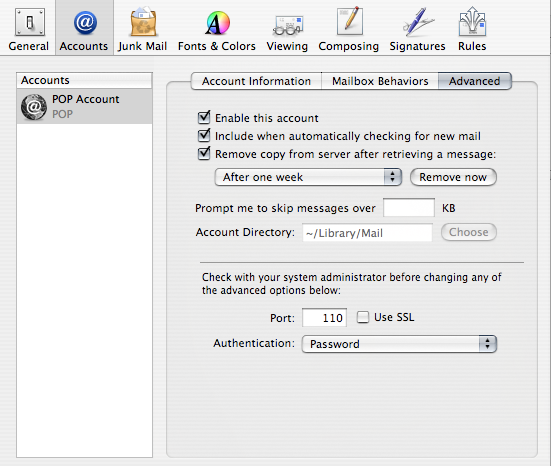
Apple Mail
- Click the "Mail" menu in the menu bar
- Select "Preferences"
- Choose "Accounts"
- Select your account (it will highlight)
- Go to "Advanced"
- Make sure "Remove copy from server after retrieving a message" is unticked
Microsoft Entourage
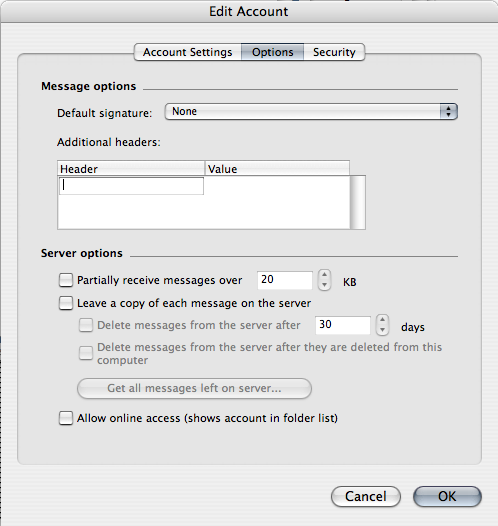
- Click the "Entourage" menu in the menu bar
- Select "Account Settings"
- In the "Account Settings" window choose your account (it will highlight) and hit the "Edit" button
- Change to the "Options" tab
- Place a tick into the box next to "Leave a copy of each message on the server"
- Click "OK"
Microsoft Outlook
- Click on the "Tools" menu
- Go to "Email Accounts" (May just be "Accounts" on older versions of Outlook)
- Outlook 2003 and above
- By default it should be set to "View or change existing accounts"
- Click "Next" to continue
- Click on your account in the email accounts list (it will highlight) and then click "Change"
- Go to "More Settings"
- Outlook XP and below
- Select the mail account (it might be called Internet Email) and choose "Properties"
- Go to the "Advanced" tab
- Put a tick in "Leave a copy of messages on server"
- Click "OK"

Microsoft Outlook Express
- Click on "Tools"
- Go to "Accounts"
- Click the "Mail" tab
- Select your account (it will highlight) and choose "Properties"
- Go to the "Advanced" tab
- Put a tick in "Leave a copy of messages on server"
- Click "OK"

