Windows Mail
Follow these steps to set up an email account in Windows mail on Vista.
Start by opening Windows Mail. You will be presented with the Inbox.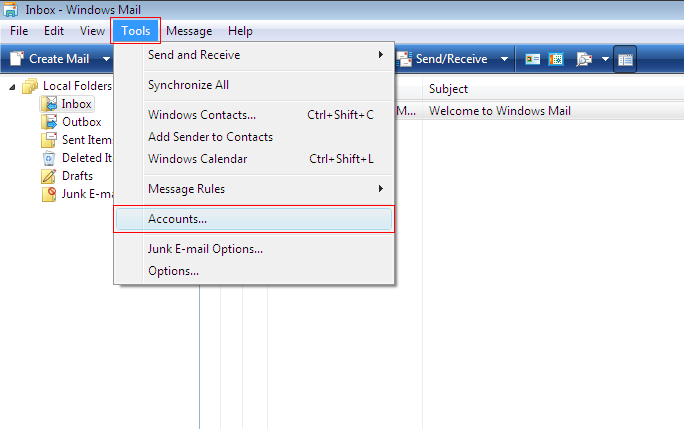
Click on the "Tools" menu and then click "Accounts".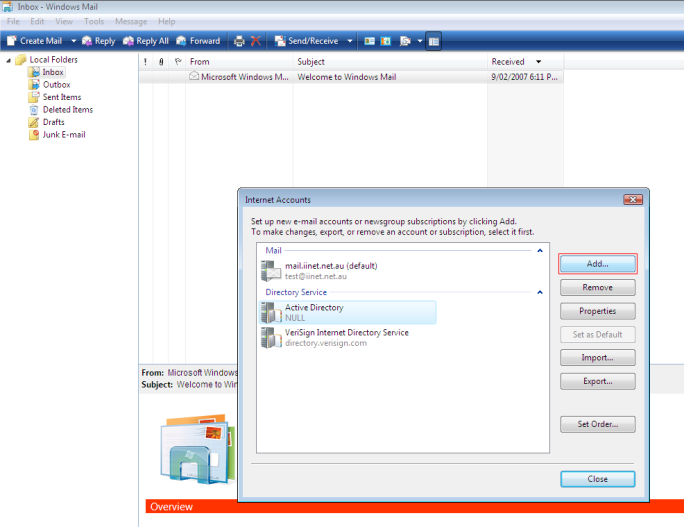
Click the "Add" button to add an account.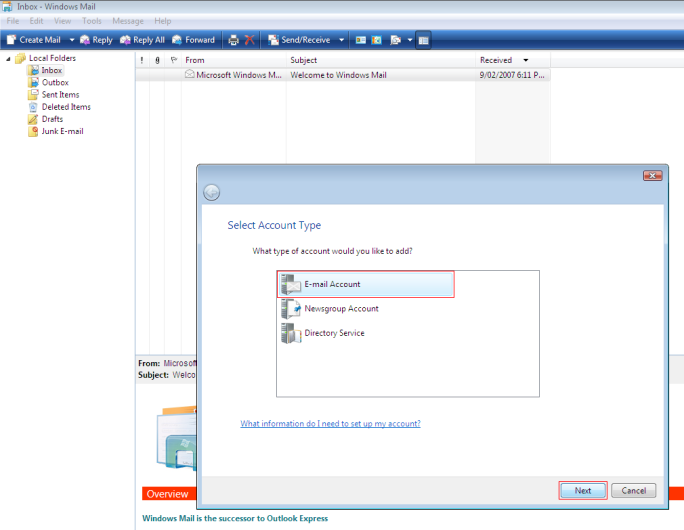
Click on "Email Account".
In "Display Name", enter the name you would like emails to be addressed from, such as your given name and family name, or your company name.
In "E-mail Address" enter your email address.
Enter the following details:
- Email Username: Enter your full email address
- Password: Enter your password
- Incoming email server type: POP3
- Incoming mail server: mail.iinet.net.au
- Outgoing mail server: mail.iinet.net.au
Click "Next" to continue.
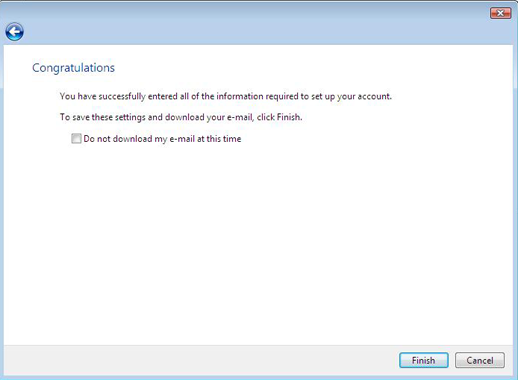
Click "Finish" to complete email setup